Find sensitive text
Auto Detect helps locate details such as emails, IDs, phone numbers and addresses. Review the results before sharing.
 Blur Me
 A receipt, a screenshot, a document. Hide the details you don’t want to share, right on your iPhone or iPad.
Download on theApp StoreiPhone & iPad · iOS / iPadOS 15 or later
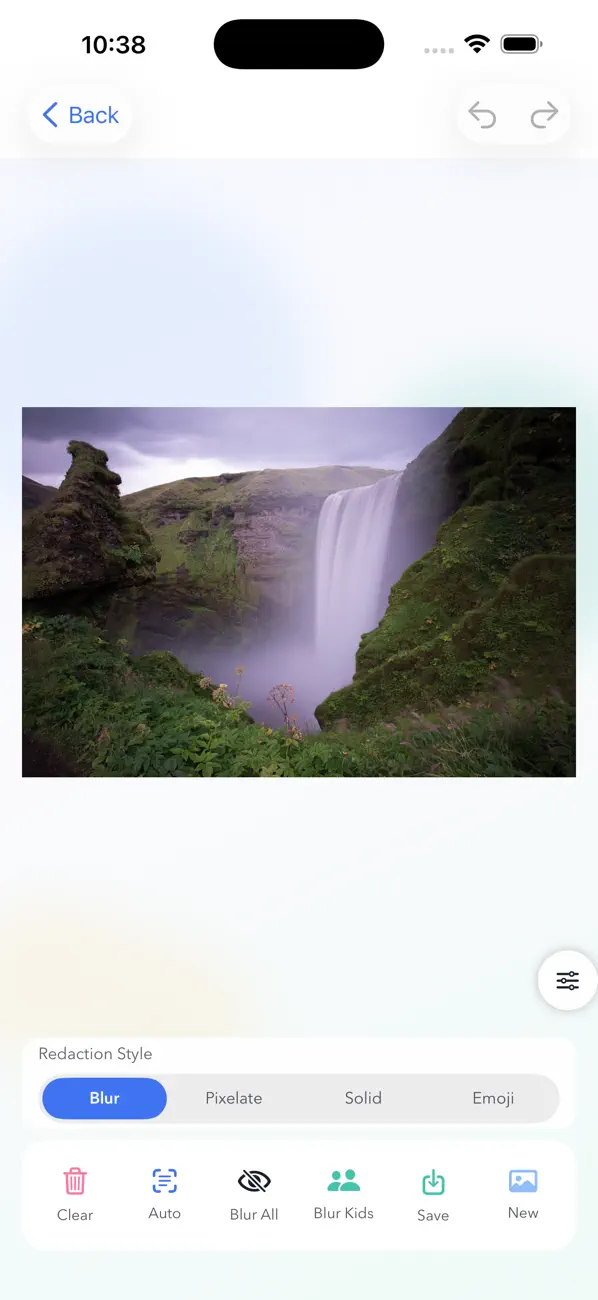
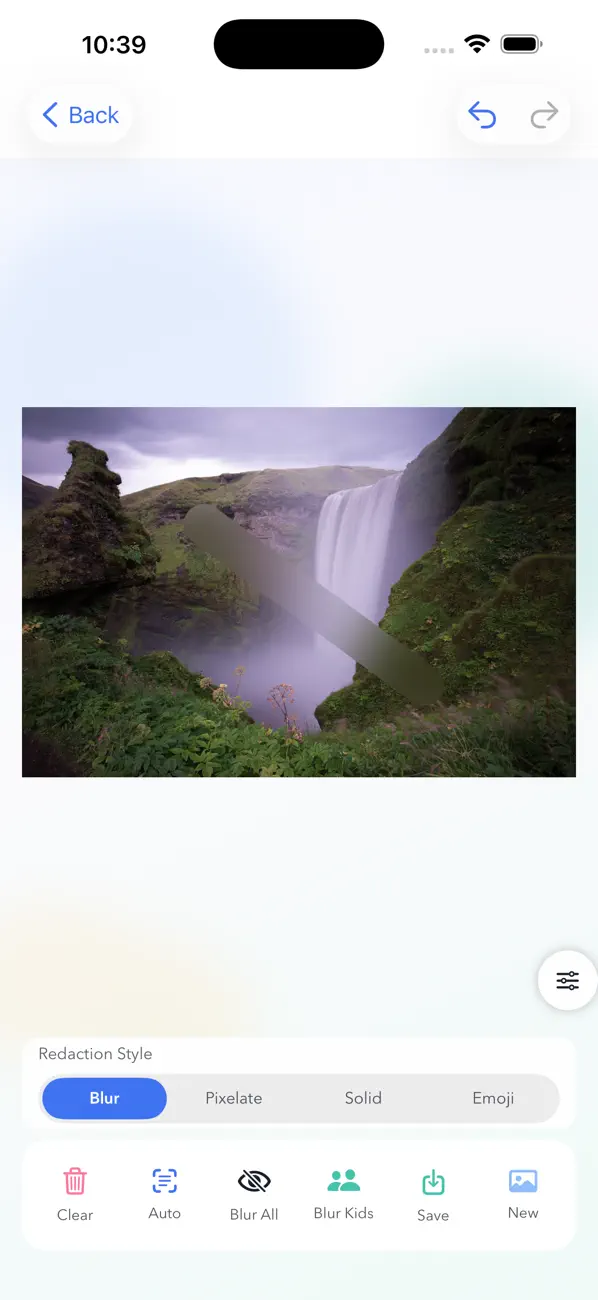
Auto Detect helps locate details such as emails, IDs, phone numbers and addresses. Review the results before sharing.
Draw over any area, adjust your brush size and blur strength, and zoom in to work on small details.
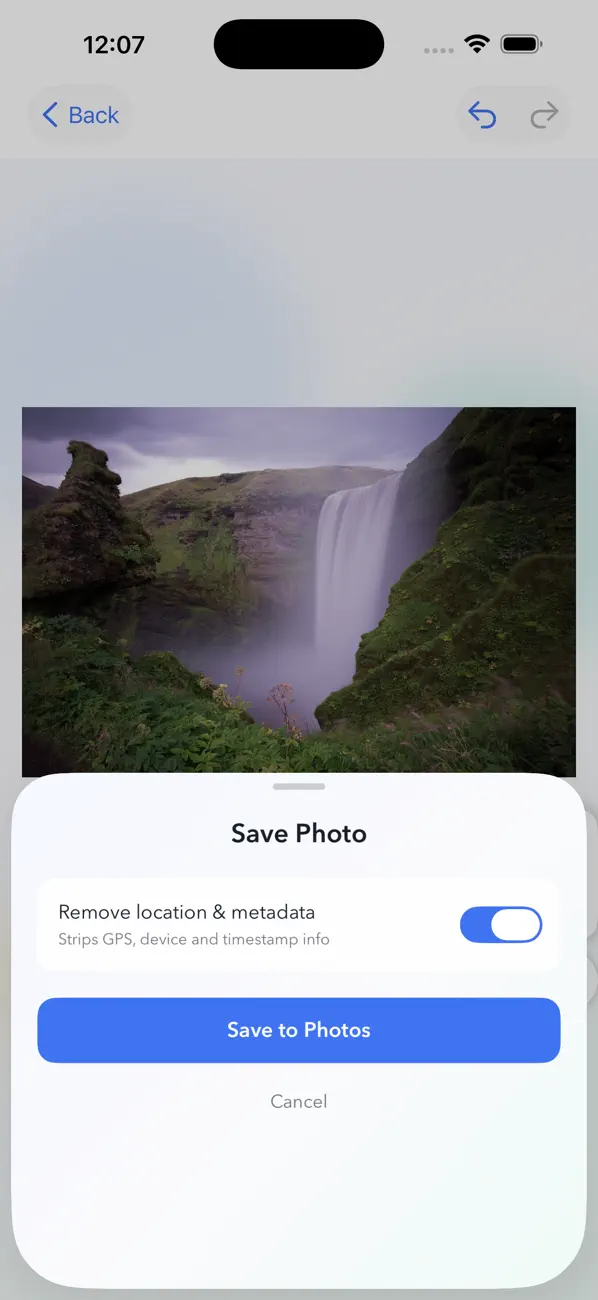
Choose Remove Metadata on Save to strip GPS and EXIF information from the exported photo.
No upload or account needed. The editing happens on your device.
Read the quick guide →Pick an image from your library or take a new photo.
Use Auto Detect or draw your own blur areas. Zoom in and check every detail.
Choose whether to remove metadata, save the edited image and review it before sending.
Screenshots from the App Store. Scroll to explore.
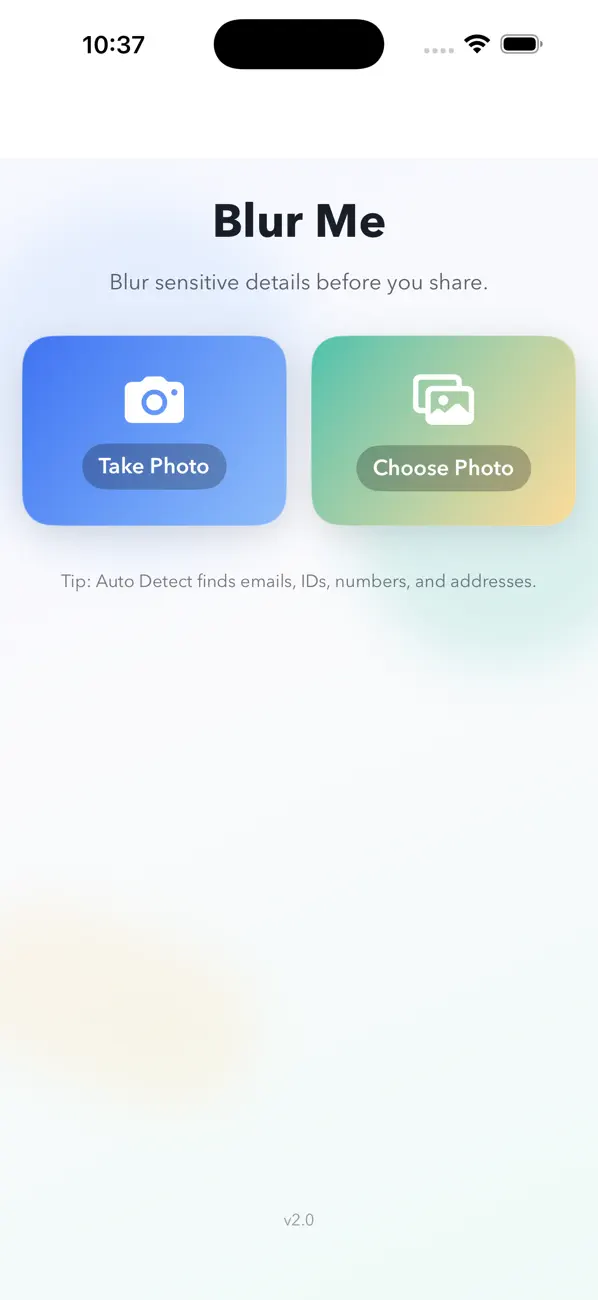
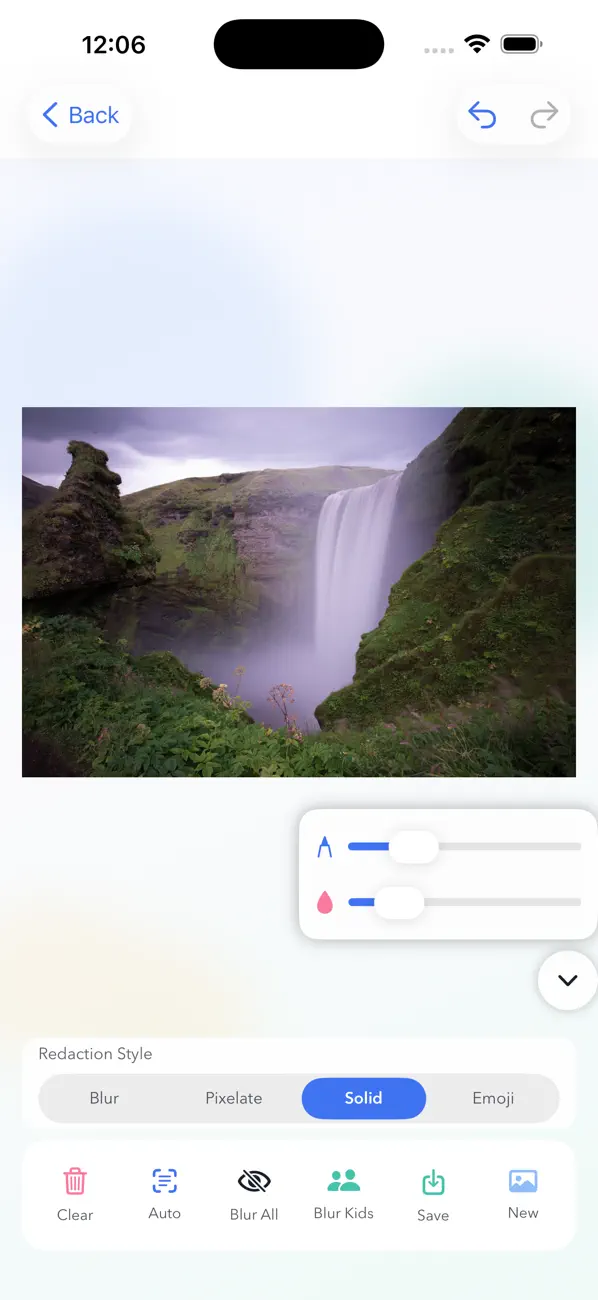
Blur Me processes images on your device. Your photos aren’t uploaded to a developer-operated server, and no account is required.
Automatic detection can miss details. Check the exported image yourself, and use an opaque cover for information that must be fully hidden.
Read the privacy policy →Get Blur Me for iPhone and iPad.
Download on theApp Store